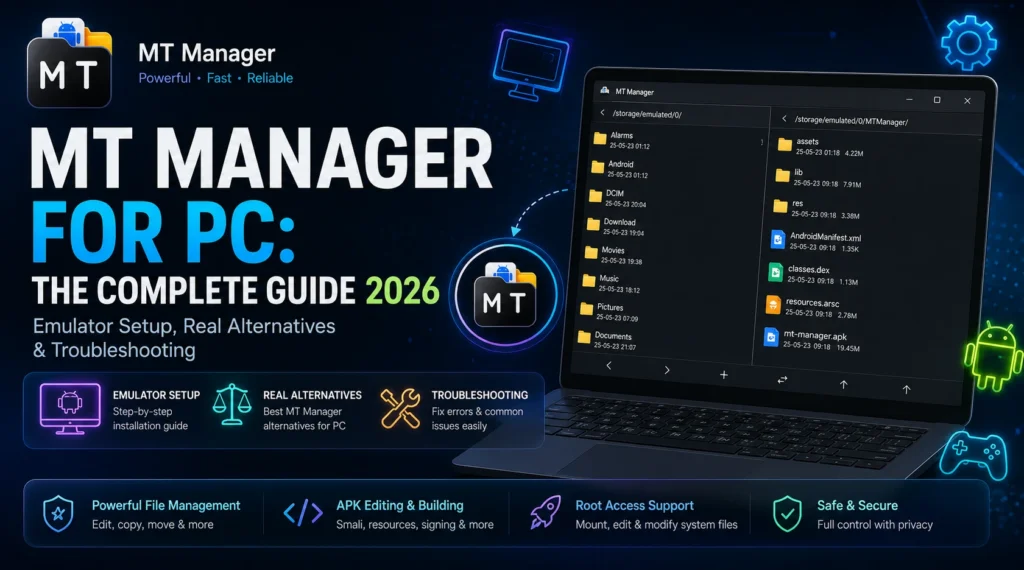
MT Manager for PC: The Complete Guide 2026 (Emulator Setup, Real Alternatives & Troubleshooting)
MT Manager is a dual-pane Android file manager and APK editor but it’s built exclusively for Android, with no official Windows or Mac version. That means MT Manager for PC always requires a workaround, and there are three genuinely different ways to get it, not one. Most guides only cover the first:
- Run it inside an Android emulator (BlueStacks, LDPlayer, NoxPlayer) best for full offline use.
- Mirror your real phone’s screen to your PC using scrcpy best if you want the actual app running on real hardware, not a virtual copy.
- Use a genuine PC-native alternative (Solid Explorer, Total Commander, or developer tools like Apktool and JADX) best if you don’t need MT Manager specifically, just its functionality.
This guide covers all three, plus system requirements, emulator-specific install steps, real troubleshooting for the errors people actually hit, and how to verify a download is safe before you run it.
What MT Manager Actually Is
MT Manager is a free Android app for managing local, cloud, and root-level files, and for editing APKs directly on-device. Its two defining capabilities are:
- Dual-pane file management two independent folder views side by side, so you can drag, copy, and compare files between two locations without switching screens (similar in concept to Total Commander or Norton Commander on desktop).
- APK decompiling and editing it can unpack an APK’s internal structure (AndroidManifest.xml, classes.dex, resources.arsc, the res/ folder), let you view or edit smali code and resource strings, then repack and re-sign the APK using a generated or custom keystore.
Because of the second capability, MT Manager is popular with people who want to translate an app’s UI (editing strings.xml/arrays.xml), rebrand or clone an app for personal testing, inspect an APK before installing it, or do lightweight reverse-engineering and QA work. It also supports root-level file access on rooted devices, text/hex editing, and common archive formats (ZIP, RAR, 7z, TAR, GZ).
None of this changes the core fact: it’s an ARM/Android-targeted APK, so installing on PC always means putting an Android layer between MT Manager and Windows.
Method 1: Run MT Manager on PC via an Android Emulator
This is the closest thing to installing MT Manager on Windows you’re running a virtual Android device on your PC, then installing MT Manager inside it like you would on a phone.
System requirements (check these before you start)
- OS: Windows 8.1, 10, or 11 64-bit only
- RAM: 4 GB minimum, 8 GB recommended (emulators are RAM-heavy)
- CPU: Intel or AMD with hardware virtualization support (VT-x for Intel, AMD-V for AMD) this must be enabled in your BIOS/UEFI, not just present on the chip
- Graphics: DirectX 11 support
- Disk space: 5–10 GB free per emulator instance
- Mac users: none of the major Android emulators listed below run natively on macOS the same way as Windows; scrcpy (Method 2) is the more reliable route on Mac
Step-by-step: BlueStacks
- Download BlueStacks from the official site and run the installer.
- On first launch, choose your Android engine version (BlueStacks 5 typically offers Android 11 or 13 images) pick whichever the MT Manager APK version you’re using explicitly supports.
- Sign in with a Google account (optional, but needed for Play Store access) or skip and sideload directly.
- Drag the MT Manager APK file into the BlueStacks window, or use the built-in APK importer.
- Once installed, open MT Manager from the BlueStacks home screen. Grant storage permissions when prompted so it can see the emulator’s virtual file system.
Step-by-step: LDPlayer
LDPlayer is worth calling out separately because it defaults to an older Android build (commonly Android 9), which affects compatibility with newer MT Manager releases.
- Install LDPlayer and let it complete its initial virtual device setup.
- Check Settings > Android version if you hit compatibility errors later, this is the first place to look.
- Sideload the MT Manager APK by dragging it onto the LDPlayer window.
- Enable root access in LDPlayer’s settings if you specifically need MT Manager’s root-file-browsing features this is a toggle most guides never mention, and without it, MT Manager on LDPlayer behaves like a non-rooted phone.
Step-by-step: NoxPlayer / MEmu
Both follow the same pattern as BlueStacks install, drag-and-drop the APK, launch, grant permissions. NoxPlayer has a built-in root toggle in its settings menu (similar to LDPlayer), which MEmu also supports. If you plan to use MT Manager’s root-dependent features, confirm root is switched on in whichever emulator you choose before installing the app.
| Emulator | Default Android Version | Root Toggle | RAM Footprint | Best For |
|---|---|---|---|---|
| BlueStacks | Android 11 or 13 (Selectable) | Yes (Paid tier for some advanced features) | Higher | Newest MT Manager builds and general Android usage. |
| LDPlayer | Android 9 | Yes (Free) | Moderate | Low-spec PCs and users needing built-in root. |
| NoxPlayer | Android 7 or 9 | Yes (Free) | Moderate | Balanced performance with broad app compatibility. |
| MEmu | Android 7 or 9 | Yes (Free) | Moderate to High | Running multiple Android instances simultaneously. |
Method 2: Mirror Your Real Phone to PC with scrcpy
If your goal is genuinely using MT Manager not a virtual clone of it scrcpy (an open-source, free screen-mirroring tool) is arguably the most honest answer to “MT Manager for PC,” and something the templated competitor guides skip entirely. It displays and controls your actual Android phone’s screen on your Windows/Mac/Linux desktop over USB or Wi-Fi, with your real MT Manager app, your real files, and your real root access (if your phone is rooted) no emulator layer, no ARM/x86 compatibility guesswork.
Basic setup: install scrcpy on your PC, enable USB debugging in your phone’s Developer Options, connect via USB (or configure ADB over Wi-Fi), and run scrcpy. Your phone’s screen including MT Manager exactly as installed appears in a resizable window you control with your mouse and keyboard.
This method has no APK-compatibility issues at all, since nothing is emulated. The tradeoff is that you need a physical Android phone connected or on the same network, and this is a mirroring/remote-control tool, not a “install once, keep forever” desktop app.
Method 3: Genuine PC-Native Alternatives (No Android Layer Needed)
If your real goal is dual-pane file management or APK editing on PC not MT Manager specifically these tools do the same jobs natively on Windows, with no emulator required:
| Tool | What it Replaces | Platform |
|---|---|---|
| Total Commander | Dual-pane file management | Windows (Native) |
| Solid Explorer | Dual-pane file management | Android (Native App) |
| Android Studio | Full App Inspection, Building & Debugging | Windows / macOS / Linux |
| JADX | Decompile APK to Readable Java Source | Windows / macOS / Linux |
| Apktool | APK Resource & Smali Rebuilding | Windows / macOS / Linux |
| Bytecode Viewer | Decompiler & APK/JAR Analysis | Windows / macOS / Linux |
For anyone doing serious APK analysis or rebuilding work, JADX + Apktool together on native Windows will generally outperform MT Manager running inside an emulator no virtualization overhead, and built for exactly this workflow.
Is It Safe? How to Verify Before You Install
MT Manager isn’t distributed on the Google Play Store, so every copy in circulation is a sideloaded APK from a third-party site which is exactly the vector repackaged/malicious APKs use. Before installing any MT Manager APK (in an emulator or on a real phone):
- Check the file hash against a source you trust, if the site publishes one.
- Scan the APK file with a multi-engine scanner (VirusTotal-style services accept direct APK uploads) before installing, not after.
- Review requested permissions at install time a file manager needing storage and (optionally) root access is expected; requests for SMS, contacts, or accessibility-service access on a file manager are a red flag.
- Avoid modified/”pro” APKs claiming to unlock paid features for free these are the most common repackaging target for injected malware.
Troubleshooting Common Errors
Hyper-V conflict / emulator won’t start on Windows 11 Windows 11’s Hyper-V and Windows Hypervisor Platform can conflict with BlueStacks/LDPlayer’s own virtualization layer. Disable Hyper-V via Turn Windows features on or off, or switch the emulator’s engine setting to compatibility/DirectX mode if available, then restart.
Virtualization is not enabled / VT-x/AMD-V error This means hardware virtualization is present but switched off. Reboot into your BIOS/UEFI (usually Del or F2 at startup), find Intel VT-x or SVM Mode / AMD-V under CPU or Advanced settings, enable it, save, and restart.
App not installed as package appears to be invalid Usually one of three causes: the APK is corrupted (re-download from a fresh source), the APK is built for an Android/API level your emulator’s engine doesn’t support (switch the emulator’s Android version), or the file was only partially downloaded.
MT Manager installs but crashes immediately, or features don’t work Often an ARM vs x86 mismatch some APKs, including certain MT Manager builds, are compiled for ARM architecture only and fail or behave unpredictably on an emulator’s default x86/x64 image. Check whether your emulator offers an ARM translation layer/image and switch to it if so.
Root-only features (system file access) aren’t available Confirm root is explicitly enabled in the emulator’s own settings menu most emulators ship with root off by default, separate from any permission MT Manager itself asks for.